
How do I use Live Activities and the Dynamic Island?
Enable fasting/eating displays, choose button behavior, and understand disappearance or stale information.
A Live Activity follows your current fasting or eating window on the Lock Screen and, on compatible iPhones, in the Dynamic Island. Viewing it does not require Pro. Direct interactive actions have separate Pro or historical-access requirements.
Enable a Live Activity
- In Fasty, open Statistics → Settings → Live activity.
- Enable Fasting window. Enable Eating window separately if you want that display after saving a fast.
- Open Fasty's settings in the iPhone Settings app and check that Live Activities are allowed. On newer iOS versions, app settings are under Apps → Fasty.
- Return to Fasty, then check your Lock Screen while the selected window is active.
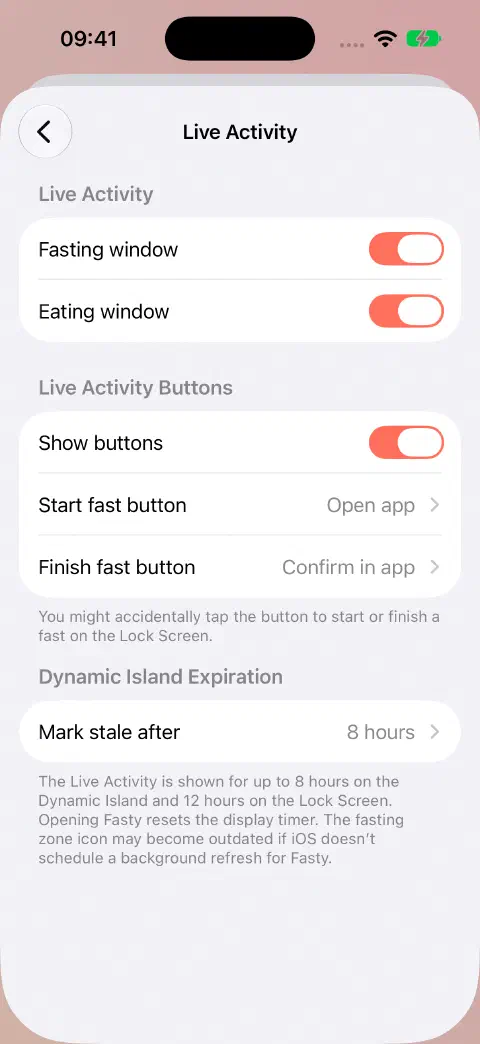
Show buttons controls their visibility. The start and finish behavior choices control whether a button opens the app or takes a direct action. Changing these settings does not unlock a paid action. Open app changes the button's behavior after its access check. To keep the display without action buttons, turn off Show buttons and use the ordinary controls inside Fasty. See why a button opens the Pro screen.
If the Live Activity disappears
A Live Activity can be active for up to 8 hours and remain on the Lock Screen for up to 12 hours. That system display limit does not end your fast. Open Fasty again to renew its display. See Apple's Live Activity limits.
For a blank or missing display, check both the system permission and the appropriate in-app window switch. Turn that window off and back on in Fasty, then check again. The eating switch applies when you are eating, not fasting.
If its zone label looks old
The timer can advance while zone information waits for an app/background update. Open Fasty and compare the current state, then check the activity again. Its display limits do not end or save your fast.
For permanent Home/Lock Screen placement, see widgets.
Still need a hand? Contact me.