
How do I import Fasty records?
Load a compatible fasting or weight CSV, review the preview and save the records.
The ordinary iPhone import controls do not require Pro. Importing records does not transfer all app settings.
Import a Fasty CSV
- Save the file somewhere you can reach from the Files picker on your iPhone.
- Open Statistics → Data (tray icon, top-left corner) → Import.
- Under Select app and data, choose Fasts from Fasty or Weights from Fasty, matching your file.
- Tap Import at the bottom and select the CSV.
- Review the preview's dates, values, count and any warnings.
- Tap Save at the top to add the records. Check the result in Data.
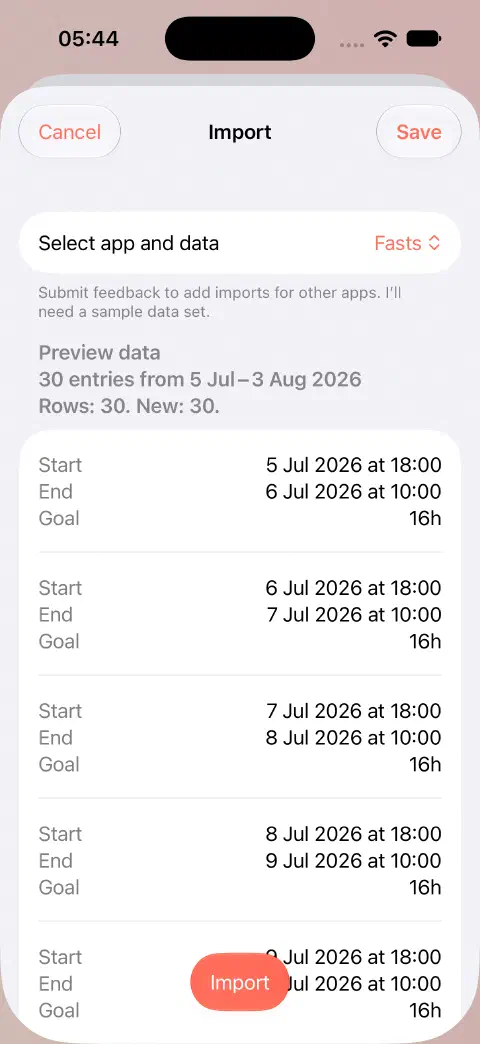
Selecting a file only loads the preview. Save commits it. Use Cancel if the content is wrong. Existing fasts with matching normalised content are filtered from fasting imports, so the new-record count may be lower than the file's row count. This does not mean differently recorded, overlapping fasts will be removed automatically.
If a file fails or the preview is empty
- Match the selected dataset to the file: fasting CSV or weight CSV.
- Keep the original file. Renaming a file extension does not convert its format.
- For Fasty CSV, use an unedited Fasty export as the starting point. Arbitrary spreadsheet columns or another app's CSV are not automatically compatible.
- For fasts, check whether the file only contains records already saved.
- Read validation warnings. Exclude invalid data, when offered, omits those entries; it does not repair the original file.
If you need help, please contact me with the source app, file type, selected dataset and error message.
For another app's history, use the separate Zero guide. For creating a compatible file, see exporting.
Still need a hand? Contact me.