
How do I add a missing fast?
Enter a completed fast directly, with its original start and end dates.
You can add a completed fast from the timer or through Data. Neither route requires Pro.
Quick route when not fasting
- Tap Start Fast on the main timer.
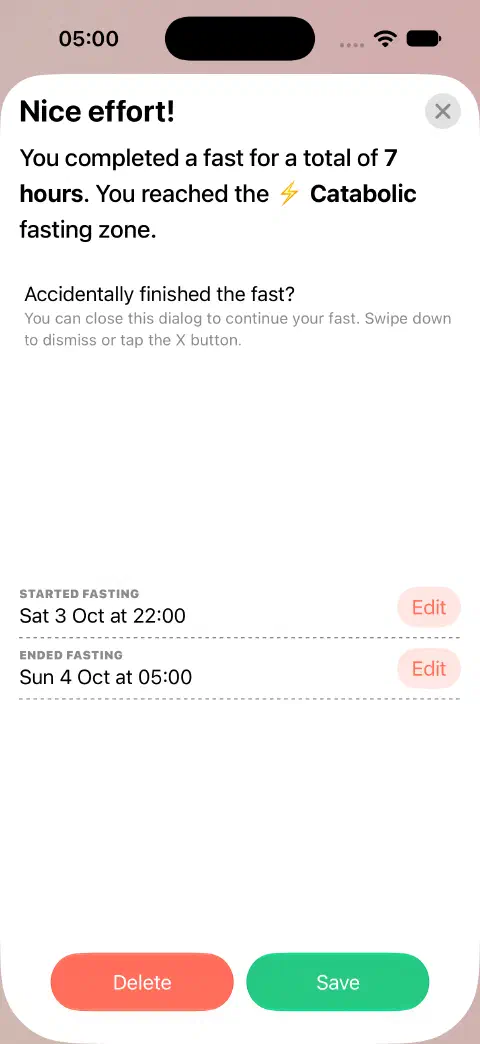
- Tap End Fast to open the finish screen.
- Use Edit beside Started fasting and Ended fasting to set the missing fast's original dates and times. Save each time editor.
- Check both dates, then tap Save to keep the completed record.
This route only works when no fast is running. If you are already tracking another fast, add the missing record through the Data screen instead.
Add through the Data screen
- Open Statistics from the fasting timer.
- Tap the tray button at the top left to open Data. Select Fasting if the screen is showing weights.
- Tap + at the top left.
- Tap Edit beside Started fasting and set the original date and time. Tap outside an open date/time picker, then tap Save in the time editor.
- Repeat for Ended fasting. Check both dates, especially for a fast that crosses midnight.
- Tap Save in the fast screen. Find the new entry in the timeline and check its duration.
If the fast you want to record is still ongoing, correct the active timer's start time instead of adding a completed record.
If Save is unavailable
Check that the end is later than the start and that both dates are correct. An overlap warning means another record covers some of the same time. See overlap help.
If the record already exists, edit it instead of adding another copy.
Still need a hand? Contact me.